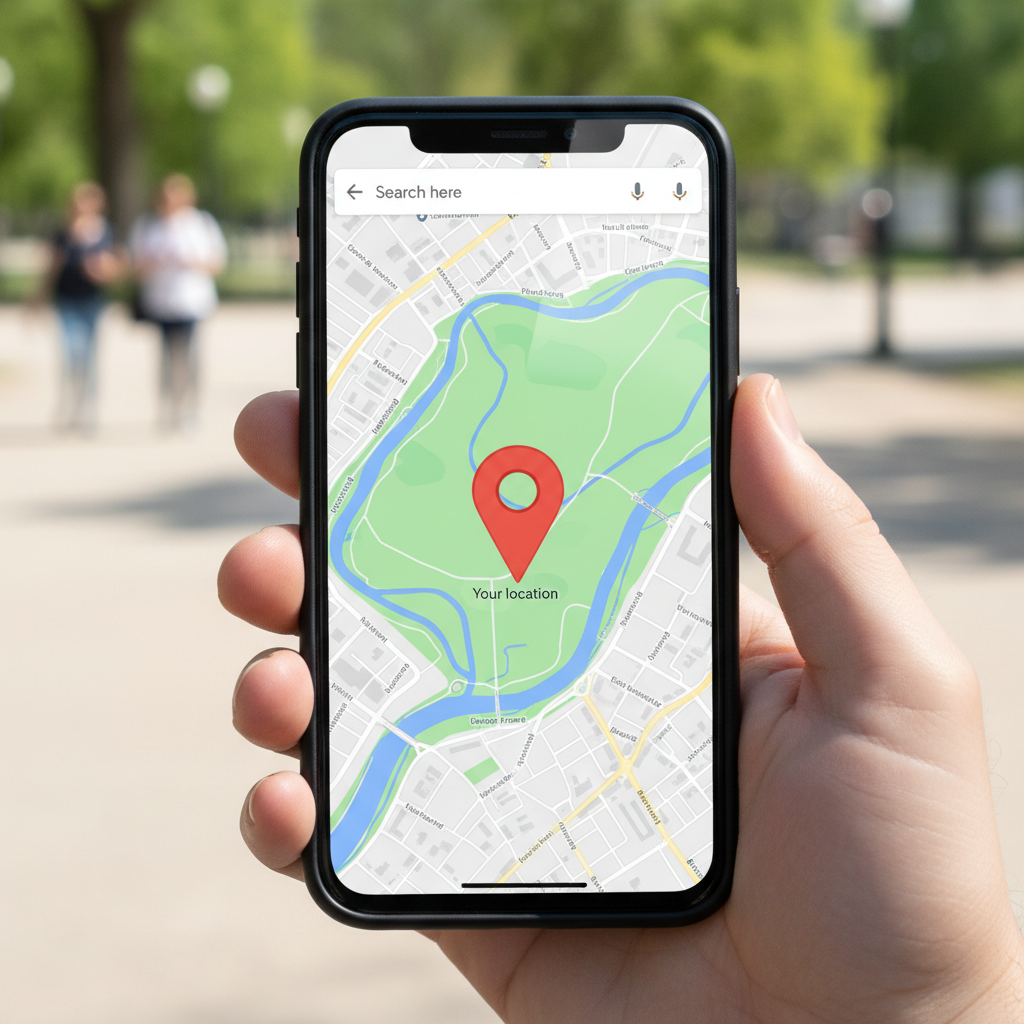
The 'Where Are You?' Struggle Ends Now
Look, we've all been there. You're trying to meet a friend at a specific trailhead, or maybe a food truck that doesn't have a real address, and the 'search' bar is being completely useless. It's frustrating. Google Maps is great for finding a Starbucks, but it's surprisingly annoying when you need to mark a spot in the middle of a park or a massive parking lot.
I've spent fifteen years writing about tech, and honestly? Most people still don't know how to drop a pin properly. They just send a screenshot of their blue dot. Don't do that. It's messy. Here is the real way to pinpoint a location so nobody gets lost.
Dropping a Pin on Your Phone
This is what you'll use 90% of the time. Whether you're on an iPhone or a Samsung, the process is basically the same. Open the app. Find your general area. Now, instead of typing in the search bar, just long-press on the screen. Hold your finger down for a second or two on the exact spot you want to mark.
Boom. A little red pin appears. A menu pops up at the bottom. You'll see options to 'Share,' 'Save,' or 'Label.' If you're meeting someone, hit share. It sends a direct link with the GPS coordinates—way better than a grainy screenshot. I remember a client of mine who tried to give me directions to their rural office using landmarks like 'the big rock.' We spent forty minutes on the phone. If they'd just dropped a pin, I'd have been there in ten.
Fine-tuning the spot
Sometimes your finger is too fat for the screen. It happens. If the pin isn't exactly where you want it, don't try to drag the pin itself. Move the map underneath the pin. Zoom in way further than you think you need to. The more you zoom, the more precise that little red marker becomes. It's a no-brainer, but people forget to zoom.
The Desktop Method (For the Planners)
I usually do this when I'm planning a road trip or a photo shoot. Using a mouse is just easier. On your computer, go to Google Maps and literally just click anywhere on the map. A tiny grey icon will appear, and a small box pops up at the bottom of the screen with the coordinates and a thumbnail of the street view.
Click those coordinates. It'll turn that temporary grey mark into a permanent red pin on the left-hand sidebar. From there, you can send it to your phone. It's the most reliable way to make sure you're looking at the right side of the street before you even leave the house.
What's the Deal With Plus Codes?
Here's the thing: sometimes there is no address. If you're in the middle of the desert or a dense forest, Google uses something called 'Plus Codes.' When you drop a pin, look for a code that looks like a short string of letters and numbers with a city name (like 8FRG+V7 London). It's basically a digital address for places that don't have one. Copy that, text it, and the other person can plug it right into their search bar. It's a lifesaver for hikers.
Why Your Pin Might Be 'Off'
I've seen this go wrong a dozen times. You drop a pin, send it, and your friend ends up a block away. Usually, it's because of 'GPS drift.' If you're standing under heavy tree cover or tall buildings, your phone's blue dot might be bouncing around. My advice? Don't drop the pin based on where *you* are standing. Drop it based on what you see on the map. Use the satellite view to find a recognizable landmark—a specific driveway, a fountain, a weirdly shaped bush. Visual confirmation beats GPS accuracy every single time.
- Switch to Satellite View for better accuracy in parks or rural areas.
- Save the location to a 'List' if you need to find it again later.
- Label your pins (e.g., 'Secret Fishing Spot') so your map doesn't just look like a sea of red dots.
Pinning isn't rocket science, but doing it right saves a lot of 'where are you' texts. Just long-press, zoom in, and share the link. Simple.
Comments
Be the first to comment.